

Julia Coyner
Julia Coyner
Posts
Replify & ABC AI Agents Product Updates: Faster Inbox, Natural Voice Greetings, Redesigned Contacts
We shipped a set of improvements across Replify, now part of ABC Fitness, that make the platform quicker to work in and easier for your staff to manage. Everything below is live today for all ABC AI Agents (formerly Replify) customers.
These updates also lay the groundwork for what's coming next: a deeper ABC Fitness member management integration, usage monitoring, and a simpler onboarding experience.
Chatbot: conversations show up in your Inbox instantly
We rebuilt the Chatbot's foundation. Web chat conversations now appear in your Inbox the moment they start, and they persist if a prospect switches browser tabs or comes back later. No more gaps between what a lead typed and what your team can see.
This new architecture is also what makes live handoff to staff possible, which is on our roadmap.
Phone and Voice: greetings that sound like a person picked up
Required disclosures like "this call is being recorded" no longer have to sit inside the AI's opening line. New configurable Pre-Connect Messages play those statements before the AI answers, so the greeting itself can be short and natural, the way a front desk team member would actually answer the phone.
Curious what that sounds like at scale? See how one operator handles 74% of customer calls across 50 locations with the AI receptionist.
Contacts and Inbox: faster search, cleaner details
The Contacts list and Contact Details pages have been redesigned so your team can find who they're looking for and see the full picture at a glance. Behind the scenes, Inbox search and filtering are dramatically faster, which you'll notice most on busy days when you're working through a full queue of leads.
Connected Apps: integrations that are easier to find and manage
The Connected Apps page has been refreshed so you can find, connect, and manage your integrations without hunting. This also sets up upcoming integrations with Glofox and Ignite.
What this means for your team
Every one of these changes is about the same thing: keeping your staff on the floor with members instead of clicking around a screen. Faster search, instant chat visibility, and phone greetings that sound human all add up to a front desk that runs smoother without anyone having to think about it.
That's the outcome operators like Gold's Gym NorCal and UFC GYM are seeing today. Browse all case studies.
.avif)
AI Receptionist and AI Sales Updates August 2026
August was one of our biggest shipping months ever. Quick context if you missed the news: ABC Fitness acquired Replify in July 2026 to bring agentic AI to fitness operations, and our AI Receptionist and AI Sales Agent are being offered to the fitness industry as ABC AI Agents. Same human team, same product, now backed by the largest fitness technology company in the world. The pace of improvement below is a preview of what that partnership makes possible.
Here is everything that shipped across three August releases, organized by what it means for you and your staff. If you want to catch up on prior releases first, the full archive lives on the Replify product updates blog.
What is ABC AI Agents (also known as Replify)?
ABC AI Agents is the new name for Replify inside the ABC Fitness family. It is an AI Receptionist and AI Sales Agent platform built specifically for gyms, health clubs, and fitness studios. The AI answers your phone 24/7, responds to texts, emails, and web chats, books tours and appointments, follows up with leads through structured outreach campaigns, and hands the conversation to your team the moment a human touch is needed.
It is built for fitness operators, from single-location studios to multi-location franchises and enterprise health clubs. The goal has never been to replace your front desk. It is to catch the calls and leads your team physically cannot get to, so your coaches and staff can spend more time with the members standing in front of them.
The results are documented in our case study library. Operators like Gold's Gym Idaho, F45, Dynamic Fitness, and Club 24 use ABC AI Agents to recover missed calls, book more tours, and convert more leads without adding to their staff's workload. If you want to see it live on your own business, book a demo here.
AI Outreach Campaign Updates: Edit Live Campaigns and Build Structured Cadences
Edit live campaigns without disrupting scheduled outreach
You can now edit a campaign after it goes live. Any changes apply to future outreaches, so nothing already in flight gets disrupted. We also moved editing into a tab on the main campaign management page, so it lives where you'd expect it instead of in a separate section.
Structured cadences: schedule every step, channel, and message
This is the headline feature of the month. You can now define an explicit schedule for a campaign, including the content, channel, and rules for each outreach step. If you want a text on day one, an email on day three, and a phone call on day five, you can build exactly that and see the whole cadence laid out before you launch. Log in and open any campaign to try it.
AI Phone Receptionist Updates: Faster, More Human, More Yours
Faster response times and more natural speech
We made changes to speed up response time on calls and tuned our text-to-speech settings to sound more natural. We also improved the AI's ability to hear short, single-syllable words, which makes conversations flow better when a caller answers with a quick "yes" or "no."
New voice options: Adam, playable samples, and speed control
- You can now listen to a sample of each popular voice on the Phone Settings page before committing; no save required.
- We added Adam, a new male voice
Smarter live transfers for multi-location operators
- New agents now default to asking why a caller wants to be transferred before transferring. This keeps your front desk from fielding calls the AI could have handled, and it's fully configurable under Core Behavior.
- You can now customize the full phrase a live transfer says prior to the handoff rather than just the name, so the handoff sounds like a real receptionist passing along a call.
- You can set up one live transfer and assign a different phone number per agent, or keep one number for all agents. Multi-location operators asked for this, and it makes setup much cleaner.
Personalized calls and follow-up texts with merge fields
- The post-call follow-up text message is now customizable, with merge fields for business name, links discussed, and assistant name.
- The intro message can now include the caller's first name, so your assistant can greet the caller with their name automatically when they call in.
- The default intro message was rewritten to match how gyms actually answer the phone.
Cleaner call handling: silence detection and conversation limits
- Calls now end gracefully after an unusually long conversation, a safeguard against automated systems and bad actors tying up your line.
AI Answer Quality: Better Knowledge Retrieval, Fewer Hallucinations
We improved how the AI pulls from your knowledge base during conversations, which means more accurate answers and fewer hallucinations. There's more coming here, but the difference is already noticeable on phone calls.
Inbox and Contact Management Updates for Front Desk Teams
- You can now create a contact directly in the Inbox.
- You can filter conversations by direction (inbound vs. outbound) or by campaign.
- From any conversation, you can click through to the related campaign right from the conversation summary.
- Text and email notifications after a conversation now include more detail and link straight to the Inbox conversation.
Faster Setup: Prompt Banks, Optional Questions, and Locations
- Common prompts are now available directly in key fields across the UI, including the phone intro. Instead of writing prompts from scratch, you can start from what works across hundreds of fitness businesses. Prompts can even auto-populate your business details.
- The Questions section in Core Behavior is now optional. Leave it blank and your assistant works just as well.
- Assistants can now be assigned a Location, the foundation for better multi-location reporting.
- The Analysis Settings page now includes an Assistant Rules tab, so you can see every prompt your assistant uses for analysis in one place.
- The timezone dropdown now surfaces the most common options first, knowledge sets are easier to rename and share, and the Notifications page got a visual refresh.
What's Next for ABC AI Agents After the ABC Fitness Acquisition
Joining ABC Fitness means more engineering horsepower behind the product you already use, and a deeper integration roadmap is underway. Everything above ships with the same goal we've always had: handle the calls, texts, and follow-ups automatically so your coaches and staff can spend their time with the members standing in front of them.
Current customers can log in to explore everything above today. If you're not using ABC AI Agents yet, book a demo and see what your gym's missed calls are actually worth. And to follow along release by release, bookmark the product updates blog.
.avif)
New in Replify: Scheduled Knowledge, Timed Call Routing, and Smarter Imports for Your AI Receptionist
You have asked for more ways to schedule Replify around how your business operates. This month, several of those requests are now live.
Whether you are routing calls, preparing a limited-time promotion, or regularly importing new campaign contacts, the right timing and setup matter. You can now control when live transfers are available, schedule knowledge to automatically start and stop, and save reusable campaign import configurations.
Read on or watch the video tour to see what's new at Replify.
Watch a Tour of the July 2026 Product Update
Log in to Replify to access these updates. New to Replify? Book a tour with our team.
Live Transfer Availability: Route Calls Based on Your Schedule
Not every transfer destination should be available at the same time. Your front desk may take calls while a location is open, while an after-hours team may only be available once it closes.
You can now choose when each live transfer is available:
- During scheduled hours. The transfer is available while the assistant is within its configured hours.
- After scheduled hours. The transfer is available when the assistant is outside its configured hours.
- Always available. The transfer can be used at any time, regardless of the assistant's schedule.
Schedules are configured at the assistant level, while availability is selected separately for each live transfer. This lets every transfer connected to an assistant use the same operating schedule while still following its own availability rule.
For example, you could:
- Send calls to the front desk during scheduled hours
- Route calls to an answering service after hours
- Keep a corporate or emergency line available at all times
To configure availability, open an assistant's live transfer settings and select the appropriate option for each transfer destination.
Scheduled Knowledge: Automatically Start and Stop Time-Sensitive Information
Promotions, events, holiday policies, and temporary offers should not require someone to remember to publish them when they begin or remove them when they expire.
Knowledge items can now include an optional scheduled start and end. When the scheduled start is reached, Replify will automatically begin using the knowledge. Once the scheduled end is reached, the item will no longer be used by your AI assistant.
A few ways to use scheduled knowledge:
- Promotional offers. Prepare a summer special in advance and automatically retire it when the promotion ends.
- Events and limited-time programs. Schedule information about an open house, challenge, class series, or member event.
- Seasonal and holiday updates. Control when holiday hours, closures, or seasonal policies are available.
- Future announcements. Prepare new pricing, programs, or policies without making them available immediately.
You'll find the new scheduling options in the Actions column of each knowledge item.
Saved Campaign Import Configurations: Map Once and Reuse Your Setup
Recurring contact imports often come from the same source and use the same columns. Until now, each new list meant repeating the mapping and configuration process.
You can now create and save import configurations for the same campaign. Each configuration can use either a CSV upload or an emailed contact list. Complete the column matching once, save the configuration, and reuse it for future imports into that campaign.
This allows you to maintain separate configurations for different systems, files, teams, or recurring workflows without rebuilding the mapping each time.
For every import, you can also choose how the uploaded list should affect the campaign:
- Add new only. Add contacts who are not already in the campaign. Existing campaign contacts are not changed.
- Update only. Update contacts who are already in the campaign without adding new contacts.
- Add and update. Add new contacts and update contacts who are already in the campaign.
- Reconcile. Make the campaign match the uploaded list by adding new contacts, updating existing contacts, and removing campaign contacts who are not included in the new list.
- Remove uploaded contacts. Remove the contacts included in the uploaded list from the campaign. They will not be deleted from your Replify organization.
To get started, open a campaign's contact import tools, create a configuration, choose CSV or email, map your fields, and save the setup for future imports.
What These Updates Mean for Your Team
This month's updates are focused on helping your team plan ahead while reducing repetitive setup and manual maintenance.
Live Transfer Availability helps ensure callers are sent to a team that is ready to answer. Scheduled Knowledge lets you prepare promotions and temporary information in advance. Saved Campaign Import Configurations make recurring list management faster and more consistent.
Together, these updates give you more control over when things happen in Replify and less to remember or rebuild manually.
If you have questions about any of these features or want help getting set up, reach out to your Replify account manager.
Not a Replify user yet? Book a demo with our team.
Replify July 2026 Product Update Frequently Asked Questions
.avif)
Product Update June 2026: Voice Live Transfers, Data Exports & New Insights
Almost everything in this release started as a customer request. The new dashboard charts came from operators who wanted to see where calls were going. The export reports were one of our most requested features.
That's the roadmap working the way it should. You run the locations, you see the gaps, and we build. Here's what's new in Replify this month.
Already a customer? Log in and most of this is live in your dashboard right now. New to Replify? Book a demo and we'll walk you through all of it.
Live Transfers by Voice: "Can I Talk to a Person?" Now Just Works
Your members don't want to press 4 to reach the front desk. They want to say "transfer me to billing" and have it happen.
Now they can. Live transfers via voice are available in your dashboard, and you can enable them yourself for every assistant at once. When a caller asks to speak with your team, your AI receptionist routes them to the right person mid-conversation without the need to press a button.
This matters because the transfer moment is where trust is won or lost. When we secret shopped 105 fitness facilities, only 31% answered the phone at all. The operators using Replify already answer 100% of calls; voice transfers make the handoff to staff feel like one continuous conversation instead of a phone tree.
How to turn it on: Head to Live Transfer settings and toggle Transfer Trigger Mode on.
Export Your Data: Transcripts, Contacts, and Usage Reports
Multi-location operators asked for this more than almost any other feature, so it's here. From Reports > Export Data, you can now pull three filtered report types:
Conversation data, including full transcripts. Use these for sales coaching, franchisee reviews, or auditing how your AI handles objections.
Contact data. Every lead and member your AI has touched, filtered however you need it, ready for your CRM or board deck.
Agent usage data. Conversation counts by assistant and channel, so a ten-location operator can see exactly which locations and channels carry the volume.
Your AI team member handles thousands of conversations a month. Now that data works as hard as the assistant does.
Two New Dashboard Charts: See Where Conversations Go
By customer request, your dashboard now shows two new views:
Links sent at the end of calls. Every booking link, signup link, or payment link your assistant sends is a conversion moment. Now you can count them.
Live transfer destinations. See exactly where transferred calls land across your team. If one location's front desk is fielding triple the transfers, that's a staffing insight you didn't have last month.
Edit Campaigns While They're Live
Testing outbound just got faster. Campaigns with 5 or fewer contacts are now editable even after going live, so you can send to yourself and a few teammates, hear how it sounds, tweak the script, and send again.
Run your tests, then scale the winner to your full list. If you're new to AI outbound, this is the fastest way to get a first campaign you trust.
See It in Action
Every feature in this release is live now.
Replify customers: log in to enable voice transfers, run your first export, and check the new charts.
Evaluating AI for your locations? See why a six-location F45 and FS8 franchisee and Club 24, which automates 6,000+ calls a month, run on Replify. Book a demo or check pricing.
Replify is the AI receptionist and sales platform built for multi-location fitness operators, trusted by Gold's Gym, UFC Gym, SWEAT440, F45 Training, FS8, and more. Learn more at replify.ai
June 2026 Product Update Frequently Asked Questions
How do I enable live transfers by voice in Replify? Open your Live Transfer settings and turn on live transfers via voice. You can enable it for all assistants and all transfers at once. Callers can then ask to speak with your team naturally, and the AI transfers them mid-conversation without a keypad menu.
What data can I export from Replify? Three filtered report types from Reports > Export Data: conversation data including full transcripts, contact data, and agent usage data showing conversation counts by assistant and channel. All three respect the filters you set before exporting.
Can I edit a Replify campaign after it goes live? Yes, if the campaign has 5 or fewer contacts. This is designed for testing: send to a small internal group, refine your message, and resend before scaling to your full list.
What do the new dashboard charts show? Two new charts: the count of links sent at the end of calls (booking, signup, and payment links) and live transfer destinations, showing where transferred calls land across your team and locations.
Who uses Replify? Replify is built for multi-location gyms, health clubs, studios, and tanning salons, trusted by Gold's Gym, UFC Gym, SWEAT440, F45 Training, FS8, and more.
Optimize Your AI Receptionist for Holiday Sales & Support
Holiday weekends like Memorial Day are some of the highest-intent windows in the fitness calendar, and they're also when most gyms answer the fewest calls. Your team is off, your hours have changed, and your phone keeps ringing with members checking your schedule and leads asking about memberships. To capture that demand instead of losing it, we pulled from our top operators like Gold's Gym, UFC Gym, and F45 Training on three core items your AI receptionist needs configured before the weekend: an hours inquiry protocol, a knowledge base entry with your holiday hours, and a proactive campaign to your contact list. Each takes about two minutes to set up, and the protocol only has to be built once.
Here's how to do all three, and why it matters more than most operators realize.
Beyond Hours, Holidays Are a Revenue Opportunity for your Business Locations
Most operators think about holiday hours as a customer-service detail. It's actually a sales and retention issue.
When we secret-shopped 105 fitness facilities in early 2026, only 31% answered the phone on a normal business day. None were using AI to handle calls, 79% never collected the caller's contact information, and 88% had no follow-up. On a holiday weekend, with staff off and front desks unmanned, those numbers get worse.
The cost of those missed calls is higher during holidays because holidays are exactly when buying intent spikes. Long weekends give people the time and motivation to act on fitness goals. According to The Fitness Membership Divide (Datagonist/FIT-C, Q1 2026, n=2,500), there are 26.5 million likely rejoiners sitting outside the membership base, and the median membership runs $85 per month. A single missed call from a rejoiner on Memorial Day weekend is potentially a thousand dollars of annual recurring revenue walking to the competitor who picked up.
The support side carries risk too. If your assistant doesn't know your hours changed, it tells callers you're open when you're closed. Members drive to a locked door. Cost is already the number one reason members cancel (34%), and a wasted trip on a holiday is the kind of friction that pushes an on-the-fence member toward the door.
An AI receptionist built for fitness solves both sides at once: it captures the high-intent holiday lead and it gives members accurate information so nobody gets turned away. The catch is that it can only do that if it knows your holiday schedule. Here's how to set that up.
Step 1: Build an Hours Inquiry Protocol
An hours inquiry protocol is a behavior rule that tells your AI assistant to check for holiday or special hours before defaulting to your regular schedule. It's the single most important configuration for handling any holiday, and you only build it once.
Without it, your assistant stores your standard hours and serves them up to every caller. That works 51 weeks a year. The other week, it gives the wrong answer to everyone who asks.
Hours Inquiry Protocol for Your AI
If you're following along with the video, here is the exact rule to add to your assistant's core behavior:
HOURS INQUIRY PROTOCOL:

When someone asks about hours using ANY time reference (today, tomorrow, next week, this week, Monday, etc.):

First determine what specific dates they're asking about
Search knowledge base for "holiday hours" or "special hours" for those dates
If special hours exist, provide those instead of regular hours
If no special hours found, provide regular hours
Copy and paste this directly into your core custom rules. You can use the bulk edit feature in the Manage Assistants tab to apply it to all of your assistants at once.
The phrasing matters. People rarely ask "what are your Memorial Day hours." They ask "are you open Monday" or "can I come in this weekend." A good protocol catches every time reference and checks for a holiday entry first. If someone asks about "next week" in late December, that almost always means Christmas or New Year's week, and the protocol routes them to the right answer.
In Replify, you add this as a custom rule and push it to every one of your assistants at once using the bulk edit feature in the Manage Assistants tab. Set it once, and every holiday for the rest of the year is handled.
Log in to your Replify account to make these edits. Not a Replify user yet? Book an AI receptionist demo to learn more.
Step 2: Add Your Holiday Hours to the Knowledge Base
Once the protocol is in place, give it something to find. Create a knowledge base entry with your specific hours for the holiday.
Be explicit inside the entry. Name the holiday, the date, and the hours for each location:
Memorial Day, May 26: Downtown closed. Westside open 8am to 12pm. All other locations closed.
For multi-location operators, you have two options. Use one shared entry that covers every location, or create a separate entry per location when schedules differ. The key detail most people miss: your assistant reads the content inside the entry, not the title of the knowledge set. A title like "Holiday Hours" tells the assistant nothing. The hours spelled out inside the entry are what it actually uses to answer.
In Replify, a single knowledge entry can be assigned to multiple assistants, so a five-location operator updates once instead of five times.
Step 3: Push an AI Holiday Campaign
The first two steps make your assistant ready to respond. This step makes it proactive.
Instead of waiting for members and leads to call, send a text campaign ahead of the weekend with your holiday hours and any promotion you're running. This does two things at once. It cuts down the volume of inbound hours questions, and it puts your offer in front of high-intent contacts at the exact moment they have time to act.
This is where the sales angle pays off. A "Memorial Day special" text to your lead list and lapsed members reaches the rejoiner segment directly. Given 65% of current members already use digital fitness tech weekly, your audience expects to hear from you on their phone, and a well-timed text converts contacts who have been sitting on the fence.
In Replify, set this up in the Campaign Manager tab, write your message, and schedule it to send before the weekend.
How to Handle Holiday Promotions with your AI employee
If you're running a holiday offer, add it to your knowledge base the same way you add hours. Include the offer name, terms, dates, and any conditions.
This closes the loop on every inbound call. When a lead asks "do you have any deals right now," your assistant gives them the real offer instead of going silent or falling back to a generic response. That's the difference between converting a high-intent caller and handing them to the gym down the street that happened to pick up.
What Multi-Location Operators Should Do Differently with their AI Agents
Single-location gyms can update one assistant by hand. Multi-location operators can't, which is where most holiday prep breaks down.
The operators who get this right treat configuration as a bulk action, not a per-location chore. Build the hours inquiry protocol once and push it to every assistant. Create holiday hours entries that can be assigned across locations. Schedule campaigns from a central manager. The goal is that prepping ten locations takes the same few minutes as prepping one.
Brands like Gold's Gym, UFC Gym, SWEAT440, F45 Training, and FS8 use Replify to manage this across their locations, so every call gets answered correctly whether it's a holiday weekend or a Tuesday afternoon.
After the Holiday
When the weekend is over, you don't rebuild anything. Deactivate the holiday hours entry and reactivate it next year, or update it in place for the next holiday on your calendar. The hours inquiry protocol stays live and keeps working. Each holiday after the first one is just a one-minute knowledge base update.
The Bigger Picture
Holidays are the most visible version of a problem that shows up any time something at your facility changes: new class schedules, temporary closures, seasonal hours, staffing gaps. Whenever your assistant works off outdated information, you're either losing a lead or frustrating a member.
The operators getting the most out of AI treat their knowledge base like a living document. A couple of minutes before each holiday means every call gets answered correctly, no member gets turned away at a locked door, and no high-intent lead slips through while your team is off.
If you want to see how Replify handles this across your locations, book a demo and we'll walk you through it.
Replify is the AI receptionist and sales platform built for multi-location fitness operators, trusted by Gold's Gym, UFC Gym, SWEAT440, F45 Training, FS8, and more. Learn more at replify.ai
AI Receptionist Holiday Hours Frequently Asked Questions
How do I set up my AI receptionist for holiday hours?
Configure three things: an hours inquiry protocol that tells your assistant to check for holiday hours before defaulting to your regular schedule, a knowledge base entry with your specific holiday hours, and an optional campaign to your contact list. In Replify, all three take about two minutes, and the protocol only has to be built once.
Why do holidays matter for gym lead capture?
Long weekends are peak buying-intent windows for fitness. With 26.5 million likely rejoiners outside the membership base and a $85 median monthly membership, a single missed holiday call can represent roughly a thousand dollars of annual recurring revenue. Most gyms answer fewer calls on holidays because staff is off, so the demand goes to whoever picks up.
What happens if I don't update my AI assistant for a holiday?
It defaults to your regular business hours and tells callers you're open when you're closed. Members drive to a locked door, and leads get bad information on their first interaction with your brand. You also miss every inbound sales call while your team is off.
Can my AI receptionist promote holiday deals?
Yes. Add the promotion to your knowledge base with the offer name, terms, dates, and conditions. When a lead asks about current deals, your assistant gives them the real offer instead of a generic response. You can also push the offer proactively with a text campaign before the weekend.
How do I update holiday hours across multiple gym locations at once?
In Replify, use the bulk edit feature in the Manage Assistants tab to push behavior rules and knowledge base entries to every assistant simultaneously. You can assign one shared holiday hours entry across locations, or create separate entries where schedules differ, so prepping ten locations takes the same few minutes as prepping one.
What is an hours inquiry protocol?
It's a behavior rule that tells your AI assistant to check for holiday or special hours whenever someone asks a time-related question (today, tomorrow, next week, a specific date). If a holiday entry exists, it uses that. If not, it falls back to regular hours. This stops your assistant from giving outdated schedule information during holidays.
Does Replify work for multi-location fitness operators?
Yes. Replify is built for multi-location gyms, health clubs, studios, and tanning salons, and is trusted by Gold's Gym, UFC Gym, SWEAT440, F45 Training, FS8, and more. Behavior rules, knowledge base entries, and campaigns can all be managed across every location at once.
.avif)
Replify Product Update May 2026: Multi-Assistant Campaigns, Analysis Fields & More
If you run three or even 300 locations, why should you build duplicate versions of the same campaign?
As of today, you don't have to. And with Memorial Day promos and summer pushes right around the corner, the timing couldn't be better.
This month brings two major capabilities, along with a set of inbox, campaign, and chatbot improvements. Here's what just changed for your business.
Here is everything new in May 2026.
Not a Replify user yet? Book a demo with our team to see what leading fitness operators are already using.
Watch Replify's May 2026 Product Update
Analysis Fields: Build Structured Post-Conversation Outputs
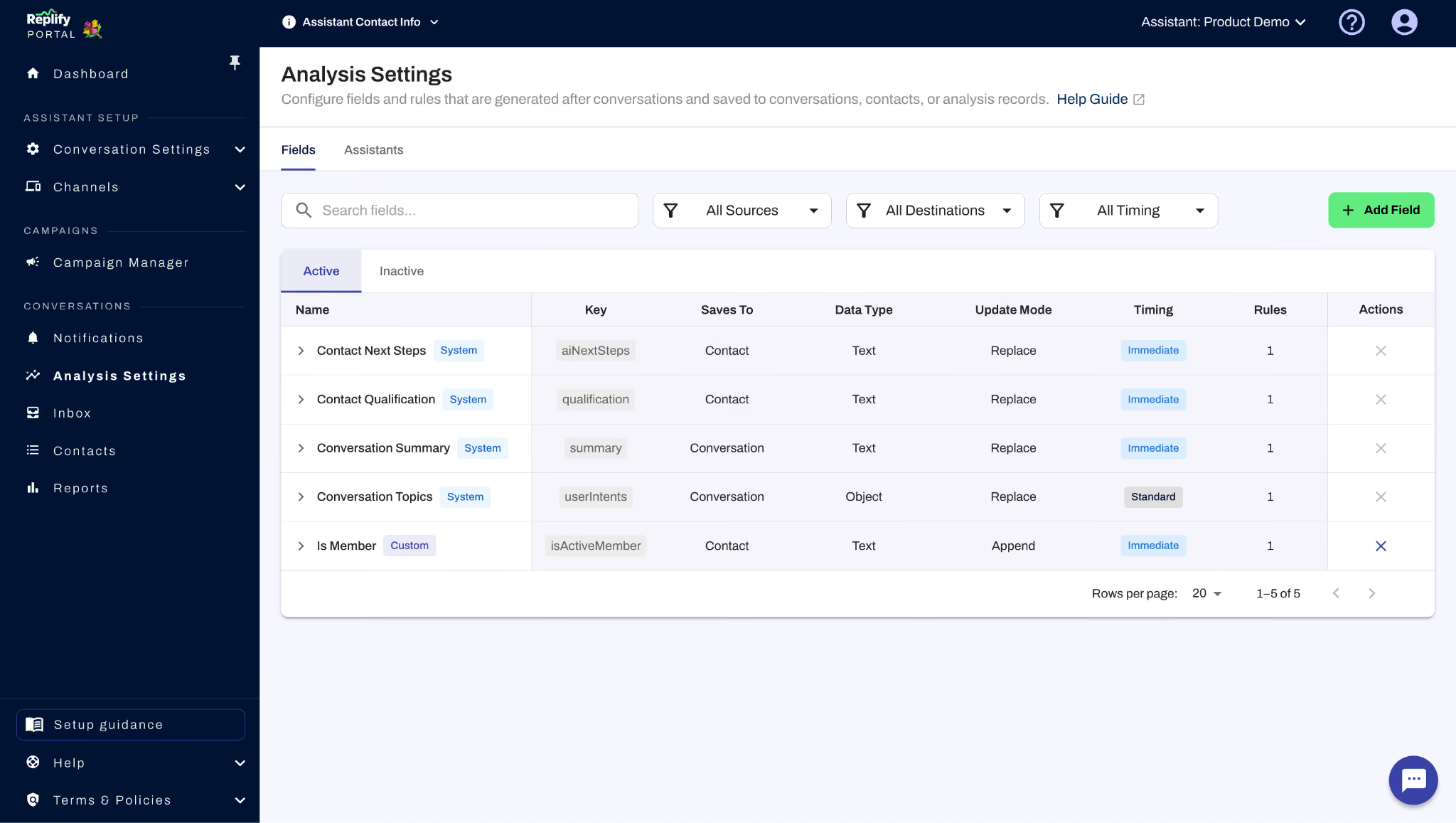
Until now, the analysis output at the end of every conversation followed a fixed structure: qualification, summary, and next steps. Analysis Fields let you go beyond that by defining your own custom slots that the AI fills in after a conversation ends.
You set what each field means and how it should be answered, and the model returns structured values you can act on. A few things this opens up:
- Tailored post-conversation data. Ask for a short recap, a numeric score, sentiment, readiness to buy, or anything else your team already tracks in a spreadsheet or CRM.
- Your own topic and category lists. Supply the themes you care about like product lines, common objections, reasons for the call, and have your AI assistant evaluate each conversation against them.
- Formatted output for downstream tools. Control how responses are shaped so they match what another system expects: plain text, date/time, boolean, etc.
- Direct CRM delivery via Zapier. Connect the analysis payload through Zapier or a similar automation so those fields land on leads, tickets, or custom objects automatically, without copy-paste.
If you already use Analysis Settings, that's where you'll find the new Fields section. The portal walks you through each field separately so you can build as few or as many as your workflow needs. Learn more about Analysis Settings.
Multi-Assistant Campaigns: Run One Campaign Across Every Assistant
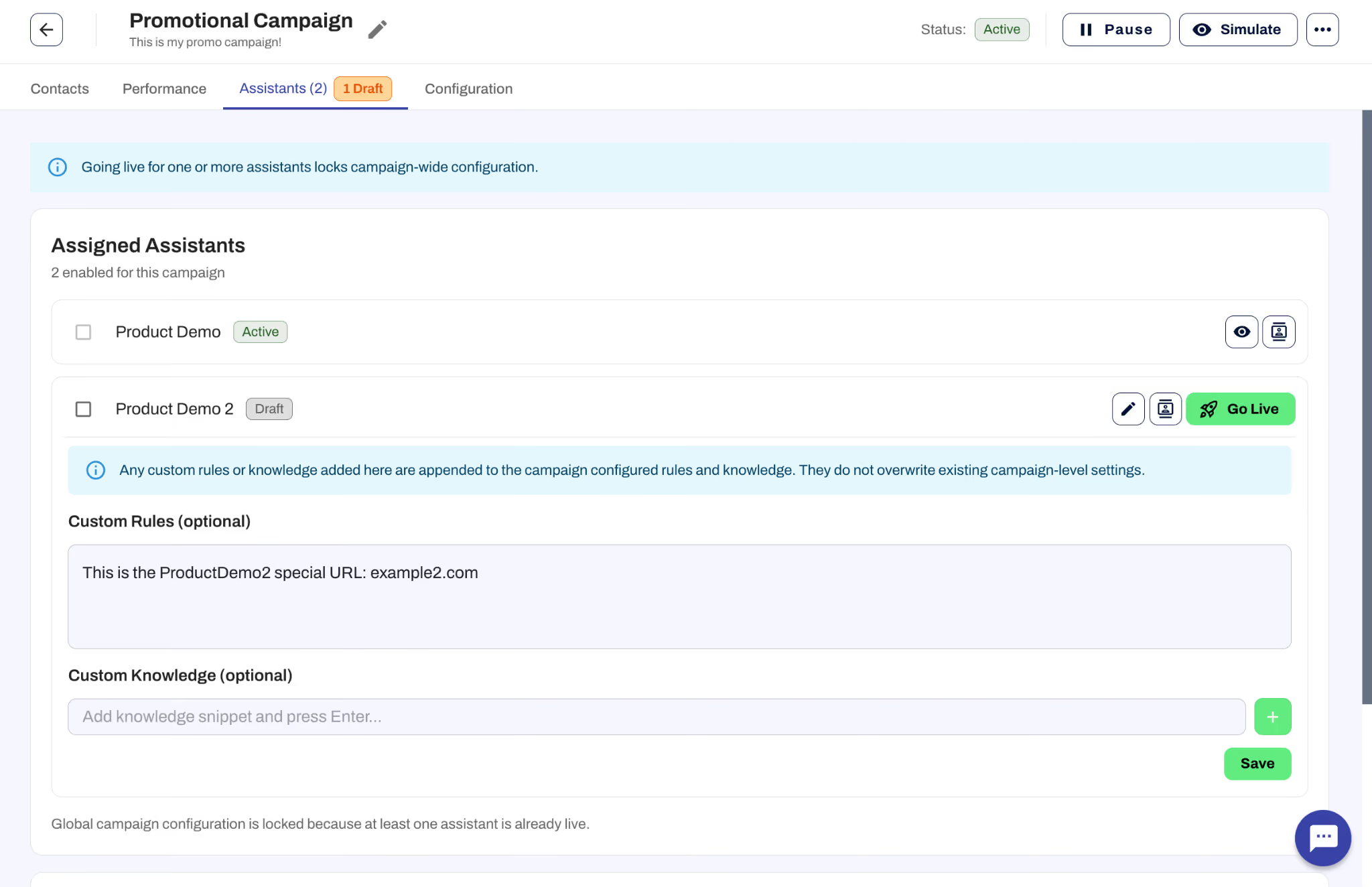
Previously, running the same campaign across multiple assistants meant cloning it for each one. Multi-Assistant Campaigns changes that: you create one campaign and select every assistant that should participate.
- A single shared plan. Scheduling, channels, core messaging, and eligibility rules are defined once and apply to all participating assistants.
- Per-assistant differences, without duplicate campaigns. Where locations or brands diverge (pricing, URLs, wording, extra knowledge, or rules) you configure those differences within the same campaign rather than maintaining parallel copies.
- Staged go-live. Start with one assistant to confirm messaging and channels, then expand to others when you're ready.
To use it, enable Multi-Assistant Campaign in Campaign Basics, or share an existing draft via Share Campaign on the campaign list. Learn more about Multi-Assistant Campaigns.
Inbox Improvements
Several updates make the Inbox faster and easier to navigate:
- Filters. Filter your Inbox by channel and by date range to zero in on the conversations that matter right now.
- Search in timeline. When you search on a keyword, you can jump through each match in the conversation timeline instead of scrolling manually to find them.
Campaign Improvements
- New API actions. The Campaign Contact API now supports updateOnly and upsert actions. Use updateOnly when your process might include contacts that aren't in the campaign and you don't want them added automatically. If no action is specified, the API defaults to upsert.
- Change contact status in the UI. You can now set a campaign contact's status to Complete or Disqualified directly from the contact list, without needing to go through individual records.
- Simulate from the edit view. The Simulate button is now available at the bottom of the campaign edit view so you can test without navigating away.
Chatbot Improvements
- Links shared by your assistant in the chatbot now display as friendly clickable text instead of raw URLs.
What These Updates Mean for Your Team
Analysis Fields and Multi-Assistant Campaigns are both aimed at the same problem: reducing the manual work that comes with scale. Analysis Fields cut down on post-call data entry and make it easier to route structured information into your CRM. Multi-Assistant Campaigns eliminate the overhead of maintaining duplicate outreach across locations. Together with the inbox, campaign, and chatbot improvements, this month's release continues Replify's investment in tools built for teams managing high volumes across multiple assistants.
If you have questions about any of these features or want help getting set up, reach out to your Replify account manager or contact us at replify.ai.
Not a Replify user yet? Book a demo with our team.
Replify May 2026 Product Release FAQ
What are Multi-Assistant Campaigns in Replify?
Multi-Assistant Campaigns let you create a single outreach campaign and share it across every assistant in your organization. Instead of cloning the same campaign for each location, you define scheduling, channels, messaging, and eligibility rules once. Where locations or brands need differences like pricing, URLs, or local wording, you configure those within the same campaign rather than maintaining separate copies.
What are Analysis Fields?
Analysis Fields let you define custom data slots that the AI fills in after every conversation. Instead of being limited to the default qualification, summary, and next steps, you can ask for anything your team tracks: sentiment, readiness to buy, numeric scores, topic categories, or formatted output for downstream tools. Fields are configured in Analysis Settings and can be connected to your CRM via Zapier.
Can I customize which topics Replify tracks in conversations?
Yes. With Analysis Fields, you can supply your own topic and category lists, like product lines, common objections, or reasons for the call, and have your AI assistant evaluate each conversation against them.
Can I send Analysis Fields data to my CRM automatically?
Yes. Analysis Fields output can be delivered to your CRM, helpdesk, or any other system through Zapier or a similar automation tool. You can control the format of each field (plain text, date/time, boolean, etc.) so the data matches what your downstream system expects.
What changed in the Replify Inbox?
You can now filter conversations by channel and date range to narrow down to specific conversation types or time windows. Keyword search now includes timeline navigation so you can jump through each match in a conversation instead of scrolling manually.
What campaign improvements were included in this update?
The Campaign Contact API now supports updateOnly and upsert actions. You can set a contact's status to Complete or Disqualified directly from the contact list. And the Simulate button is now available in the campaign edit view so you can test without navigating away.
Do Replify chatbots share links as clickable text now?
Yes. Links shared by your AI assistant in the chatbot now display as friendly clickable text instead of raw URLs.
Will my existing Analysis Settings carry over?
Yes. The previous qualification, summary, and next step settings were migrated automatically. Analysis Fields is a new capability added on top of that existing foundation.
Replify Product Update March 2026: Bulk Edit AI Assistants, Campaign Upgrades, and More
This month, we shipped one of the biggest time-saving updates in Replify's history, along with a batch of campaign and platform improvements designed to make managing your AI assistants faster and easier.
Here is everything new in March 2026.
Not a Replify user yet? Book a demo with our team.
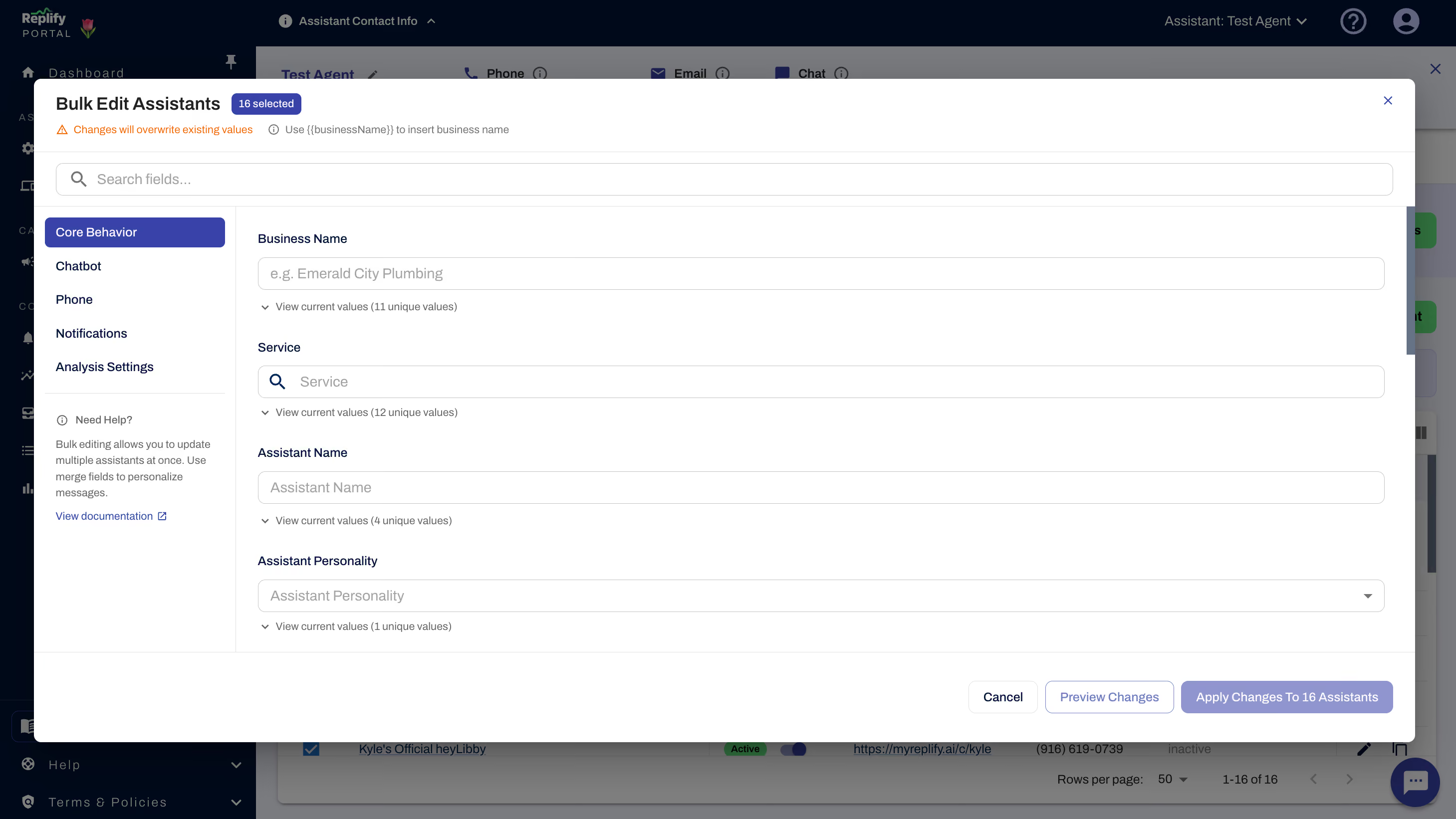
Bulk Edit AI Assistants Across Locations in One Flow
If you manage multiple Replify assistants, whether across locations, brands, or use cases, you know how tedious it can be to update each one individually. That changes now.
From the Manage Assistants screen, you can select a group of assistants, click Edit, and push shared changes across all of them in a single flow. Bulk editing works across core behavior settings, custom rules, chatbot configuration, phone settings, and notifications. (Read the Replify bulk-edits documention)
Two features make this especially powerful for multi-location operators:
The {{businessName}} placeholder lets you write one set of instructions that automatically adapts to each assistant's location. Instead of manually editing "Welcome to Gold's Gym Torrance" and then "Welcome to Gold's Gym Pasadena," you write it once with the placeholder and Replify fills in the right name for each assistant.
Append mode for rules lets you add new Global Conversation Rules or Phone Rules without overwriting what is already configured for each assistant. This means you can roll out a new policy, like a holiday schedule or a promotion script, across every location without disturbing existing rules.
For teams running 10, 50, or 100+ assistants, this eliminates hours of repetitive configuration work.
AI Campaign Improvements That Boost Deliverability and Control
Replify campaigns got a round of updates focused on reliability, compliance, and usability.
Weekend sending is now available. Previously, outreach campaigns were limited to weekday delivery windows. You can now schedule sends on Saturdays and Sundays, which is especially useful for gyms and fitness studios whose prospects are most responsive on weekends.
Built-in text message guidance helps you write compliant, high-deliverability messages before you hit send. The editor now flags common issues like missing business names, flagged link shorteners, and other patterns that carriers tend to filter. This reduces the risk of your messages getting blocked or landing in spam.
On the management side, we added better filtering, sorting, and status visibility across your campaign list. You can now see at a glance which campaigns are active, paused, completed, or encountering issues, and drill into performance without opening each one.
Replify Platform Updates That Speed Up Day-to-Day Work
We also shipped several quality-of-life improvements across the platform:
Jump to latest message lets you skip to the most recent message in any conversation thread. For operators who manage high-volume inboxes, this eliminates scrolling through long histories to find where a conversation left off.
Smarter call recordings now stop automatically once a call is transferred to a human agent. Previously, recordings could continue past the handoff, which created unnecessarily long files and potential compliance concerns. This update keeps recordings clean and relevant.
Reorder scenario steps makes it easy to insert new steps or rearrange existing ones in your conversation flows without rebuilding from scratch. If you have built complex multi-step scenarios, this saves significant time when you need to make adjustments.
Select all in Knowledge enables faster bulk cleanup and management of large knowledge bases. If you need to delete, reorganize, or audit your assistant's knowledge library, you can now select everything at once instead of clicking through items one by one.
What These Updates Mean for Multi-Location Fitness Operators
Taken together, this month's updates reflect Replify's continued investment in tools built for scale. Bulk editing, smarter campaigns, and faster day-to-day management all point in the same direction: giving operators more control without adding more work.
If you have questions about any of these features or want help configuring bulk edits for your team, reach out to your Replify account manager or contact us at replify.ai.
Not a Replify user yet? Book a demo with our team.
March 2026 Replify Product Update FAQ
What is bulk editing in Replify? Bulk editing lets you select multiple AI assistants from the Manage Assistants screen and update their settings simultaneously. You can change custom rules, chatbot settings, phone settings, and notifications across all selected assistants in a single flow instead of editing each one individually.
How does the {{businessName}} placeholder work? When you use {{businessName}} in a bulk edit, Replify automatically replaces it with each assistant's specific business name. This lets you write one set of instructions that adapts to every location. For example, a greeting like "Welcome to {{businessName}}" becomes "Welcome to Gold's Gym" or "Welcome to Anytime Fitness" depending on the assistant.
Will bulk editing overwrite my existing assistant rules? Not if you use append mode. When adding new Global Conversation Rules or Phone Rules through bulk edit, append mode adds the new rules on top of whatever is already configured for each assistant. You can also choose to overwrite if you want a clean replacement.
Can I send Replify campaigns on weekends? Yes. As of March 2026, Replify campaigns support weekend sending. You can now schedule outreach messages for Saturday and Sunday delivery, which is useful for reaching fitness prospects who are more active on weekends.
How does Replify help with text message deliverability? The campaign editor now includes built-in guidance that flags issues before you send. It checks for missing business names, flagged link shorteners, and other patterns that carriers commonly filter. Following these recommendations helps ensure your messages reach prospects instead of getting blocked.
What does "jump to latest message" do? This feature lets you instantly navigate to the most recent message in a conversation thread. It is especially useful for teams managing high-volume inboxes where conversations can get long, saving you from scrolling through the entire history.
Do call recordings still run after a transfer to a human? No. Replify now automatically stops call recordings once a call is transferred to a live human agent. This keeps recordings clean, relevant, and aligned with compliance best practices.
Can I rearrange steps in my Replify conversation scenarios? Yes. The new reorder scenario steps feature lets you drag, insert, or rearrange steps in your conversation flows without having to rebuild them from scratch.
Have more questions? Visit Replify docs or book a demo with our team.
AI Billing and AI Collections Outreach Tutorial | Replify AI Campaigns
Chasing down past-due payments is one of the most tedious, time-consuming tasks in running a gym or fitness studio. Staff get stuck making awkward phone calls, members dodge voicemails, and revenue slips through the cracks.
What if you could automate the entire collections process with AI -- personalized outreach, phone calls, and follow-up -- and launch it in just a few clicks?
In this tutorial, we'll walk through exactly how to set up and launch an AI-powered collections campaign using Replify's Campaign Manager. The video below covers the full process step by step.
Why Use AI for Gym Collections?
Traditional collections processes rely on front desk staff to manually call or text members with overdue balances. That approach doesn't scale, and it often leads to inconsistent follow-up, missed revenue, and burned-out employees.
AI collections outreach solves these problems by generating personalized calls and messages automatically. Each member gets contacted with the right details (their name, their specific balance) without anyone on your team picking up the phone. Replify's AI handles the conversation, offers to connect members with your front desk to complete payment, and tracks every interaction.
For a real-world example of how this plays out at scale, check out how Club 24 Concept Gyms is using AI to automate over 6,000 calls per month.
Step 1: Create a New Campaign
Start by navigating to the Campaign Manager in the left panel of your Replify portal. You'll see a list of any existing campaigns on your account. Click Create Campaign to get started.
From the available templates, select Simple Outreach -- this is a one-time campaign where each contact is reached once, making it ideal for collections. Then choose the Past Due Collections template. You'll notice this template comes with phone outreach enabled by default.
Click Use Template, give your campaign a name, and you'll land on the Configuration view with smart defaults already applied.
Step 2: Configure Campaign Basics
In the Campaign Basics section, you can update the title and description to keep things organized. The most important field here is the Campaign Goal.
The campaign goal isn't just a label. It's what Replify's AI uses to generate your outreach messaging and guide the live conversation after the initial contact. For a collections campaign, your goal should clearly state that you're recovering past-due balances from members.
The more specific and detailed your campaign goal, the better your AI-generated outreach will perform.
Step 3: Set Delivery and Timing
Under Delivery and Timing, confirm your communication channel. For collections, phone is the template default, and it's usually the most effective channel for this type of outreach.
Next, review the Message Strategy. The template has already written your intro message -- the script the AI will use when it calls each member. You'll see it uses dynamic variables like first name and past due amount. Default fields (first name, last name, phone, email) are always available, but custom variables like past-due amount will pull from the data you upload with your contacts.
For Campaign Execution, you have three options:
- Run at a specific date and time -- great for coordinating with your front desk so they're ready for callbacks and transferred calls.
- Run manually -- you trigger when outreach begins.
- Run automatically when contacts are added -- outreach fires as soon as new contacts are uploaded, within business hours.
For collections, scheduling a specific date and time is usually ideal so your team is prepared.
Step 4: Set Behavior and Rules
The Behavior and Rules section has two key areas.
Campaign Knowledge is supplemental information for the AI, layered on top of your existing agent knowledge base. If there are specific collections policies, payment plan options, or talking points relevant to this campaign, add them here.
Additional Instructions are rules the AI follows on every conversation -- things like staying on topic, keeping a professional tone, and transferring to the front desk when a member is ready to pay. The template provides solid defaults, but you can customize the transfer number or add specific policies as needed.
Step 5: Upload Your Contacts
After saving your campaign, it will appear in draft mode in the Campaign Manager. Now it's time to add contacts.
Click Add Contacts and choose your upload method. CSV upload is the most straightforward option. Your CSV should include the columns you need -- for a collections campaign, that typically means first name, phone number, and amount due.
When uploading, you'll map your CSV columns to campaign variables. For the past due amount variable used in the intro message, create a custom property and map it to your "amount due" column. This is what allows the AI to tell each member their specific balance during the call.
Step 6: Test Before Going Live
Before any outreach goes out, enable Manual Review. This lets you inspect and approve each piece of outreach before it's sent, which is especially important for a first campaign or when you want to verify personalization is working correctly.
You can also Simulate the campaign by selecting a contact and previewing exactly what the AI will say. The simulation shows the personalized intro message with the member's actual data and lets you test how the AI handles different member responses.
In the simulation, you'll see the AI reference the specific past-due amount and offer to connect the member with the front desk to complete payment.
Step 7: Go Live and Monitor
When everything looks good, click Go Live. A quick note: once a campaign is live, you can't go back to the edit page, so finalize any changes first.
With manual review enabled, the campaign enters Planning Mode -- the AI plans each outreach, and contacts show as "Awaiting Approval." You can review each one, then approve individually or in bulk.
Once approved, outreach will go out on your scheduled date and time. After outreach begins, you can track everything from the Campaign Manager:
- Outreach History shows every conversation with every contact.
- Performance Dashboard displays contact reach rates, call engagement, and call duration breakdowns.
- Configuration Overview lets you review your campaign setup at any time.
Recovering Revenue with Less Work
That's the entire process -- from template to live campaign in just a few minutes. AI-powered collections outreach takes the manual burden off your team while delivering consistent, personalized follow-up that actually recovers revenue.
No more sticky notes, no more forgotten follow-ups, and no more awkward front-desk calls. The AI handles the outreach, and your staff only steps in when a member is ready to pay.
Ready to see how AI billing and collections can work for your gym, studio, or health club? Book a demo with the Replify team.
Read next: AI Lead Re-engagement and Automated AI Sales
AI Lead Re-engagement and Lead Reactivation Tutorial | Replify
Every gym, studio, and fitness business has them: leads that showed interest but never booked. Maybe they filled out a form, asked about pricing, or walked in for a tour and then disappeared. Manually following up with these cold leads is tedious, inconsistent, and easy to deprioritize when your front desk is already stretched thin.
That's where AI-powered lead re-engagement comes in. With Replify's Campaign Manager, you can launch an automated outbound sequence that reconnects with inactive leads over time using phone and email, without your staff lifting a finger.
In this tutorial, we'll walk through exactly how to set up the Re-engage Inactive Leads campaign template from start to finish. Whether you're new to AI sales software or already running campaigns, you'll have a working re-engagement sequence live in minutes.
Watch the full walkthrough
Why AI Lead Reactivation Matters for Fitness Businesses
Most fitness businesses lose a significant percentage of their leads before they ever convert. These aren't bad leads. They're people who raised their hand and then got busy, forgot, or needed a nudge at the right time.
The problem is that manual follow-up doesn't scale. Your front desk team can't realistically call, email, and text hundreds of old leads while handling walk-ins, member questions, and daily operations.
AI outbound changes the equation. Replify's Campaign Manager automates multi-channel outreach (phone and email) across your entire lead list, personalizing each touchpoint while your team focuses on closing the conversations that matter. Brands like Gold's Gym DC Metro saw 10X lead growth and UFC Gym streamlined operations across locations using this exact approach.
How to Set Up an AI Lead Re-engagement Campaign
Here's a step-by-step breakdown of the process shown in the video above.
Step 1: Open Campaign Manager
Log into your Replify portal and navigate to Campaign Manager from the left-hand panel. If you already have active campaigns running, you'll see them listed here. Click to create a new campaign.
Step 2: Choose the Right Campaign Template
You'll land on the Template Selection screen. For lead reactivation, choose Ongoing Sequence. This is the right fit because you want to re-engage inactive leads over a longer period and potentially reach each contact more than once.
From the template library, select Re-engage Inactive Leads. Before selecting, you can confirm which outbound channels the template uses (phone, email, or both) and make sure they match what you've configured on your account.
Click Use Template, give your campaign a recognizable name, and hit Create Campaign.
Step 3: Review Template Defaults and Set Your Campaign Goal
Once inside, you'll notice template defaults have already been applied throughout the campaign. Anywhere you see a green prompt that says "please review this template value and customize it for your needs," that's your signal to double-check the content and tailor it to your business.
You can also add internal notes for your own reference.
The pre-built campaign goal is designed to re-engage leads who previously showed interest but never booked, then move them toward a conversation or appointment with your front desk. Interested leads get transferred directly to your team, so you're not just sending messages into the void. You're driving real conversations.
Step 4: Configure Your Campaign Schedule
Set when your campaign begins running. You can schedule a future start date or launch immediately. You'll also set the time of first outreach. Choose a window when your audience is most likely to engage. For most fitness businesses, mid-morning tends to work well.
Step 5: Set Up Delivery, Timing, and Outreach Pacing
The template pre-selects phone and email as delivery channels. If your contacts have both, leave this as-is for maximum reach.
The first outreach is pre-configured as an email check-in that references the contact's first name and asks if they're still interested. You can always swap this to a phone call after running a few simulations.
Outreach pacing controls how many attempts the campaign makes per contact before stopping. The template default is four attempts, which is a solid starting point.
You can customize your follow-up frequency using plain English. For example:
- Day 1: Email
- Day 3: Phone call
- Day 7: Email
- Day 12: Phone call
This spaces outreach more aggressively up front and then tapers over time, which mirrors how urgency naturally fades and avoids overwhelming your contacts.
Step 6: Configure Email Provider and AI Behavior
The default email provider is Replify's built-in email service. If you use a third-party provider, you can switch it here.
On the next page, you'll find Behavioral Rules, where you can add campaign-specific knowledge or additional AI instructions. The template defaults are solid for most re-engagement use cases, but this is where you'd add context like current promotions, specific talking points, or objection-handling guidance.
Step 7: Set Contact Eligibility Criteria
This is an important step. You want to make sure you're not reaching out to people who've already opted out or completed the desired action.
Configure your eligibility criteria to automatically remove contacts if they:
- Say no or request to unsubscribe
- Schedule an appointment
- Get transferred to the front desk during a campaign conversation
This keeps your outreach clean and ensures you're only contacting people who haven't already converted or opted out.
Step 8: Review, Simulate, and Test
Before going live, the summary page lets you review your entire configuration. Take advantage of the Simulate feature. Even without real contacts added, you can run simulations using a test profile to preview exactly what your outreach will look like.
The simulation shows you the first outreach email (subject line and body), lets you simulate replies, and previews subsequent outreach steps. Run this as many times as you want until you're confident everything looks right.
This is worth spending time on. Once a campaign goes live, you can't go back and edit the configuration.
Step 9: Add Contacts and Go Live
When you're ready, add contacts to your campaign. Replify supports several methods:
- CSV import (include phone and email fields)
- Email import
- API integration (connect with your CRM or existing software stack)
- Inbound contacts (automatically funnel new leads into the campaign)
- Manual entry
After uploading, confirm your field mapping (first name, email, phone) and finalize the import.
Before hitting Go Live, do one final review of your configuration. When you're ready, click Go Live.
Step 10: Monitor and Manage Your Campaign
Once live, you'll see contact statuses move through several stages:
- Planning: The AI is preparing outreach based on your configuration
- Awaiting Execution: Messages are scheduled and ready to send at your specified times
- In Progress: Outreach is actively being delivered
As outreach continues, you'll see each contact's progress bar advance through the sequence. Contacts who convert, get disqualified, or meet your removal criteria will update automatically.
If you want extra control, you can enable manual review to approve each individual message before it gets sent.
From the campaign dashboard, you can:
- View Outreach History for each contact
- Pause, remove, or add contacts at any time
- Monitor performance via the Performance tab (channel distribution, total contacts, phone vs. email metrics)
- Review your full AI configuration at any time
Start Re-engaging Your Leads Today
If you've been sitting on a list of leads that never converted, an AI-powered re-engagement campaign is one of the fastest ways to turn that list into real revenue. The setup takes minutes, the outreach runs automatically, and your team only gets involved when a lead is ready to talk.
Want to see how Replify's AI outbound engine works for your fitness business? Book a demo and we'll walk through it together.
Related Resources
Replify's AI Product Updates February 2026
The Replify team has been busy. This release includes major upgrades including new AI campaign templates, a reorganization of assistant settings to make the portal clearer, and improved controls for phone and transfers. Read on to explore the latest improvements to Replify's AI customer service and AI sales platform.
Watch a tour of Replify's 2026 product update
Not a Replify user yet? Book a demo to learn more.
Big upgrades to Campaigns (UI, templates, and one-time campaigns)
We’ve completely refreshed the Campaign create and manage experience for both one-time and follow-up campaigns. It’s cleaner, easier to navigate, and built to give you more flexibility going forward.
Simple one-time campaigns are now much more powerful. You can:
- Send outreach via phone, text, or email (not just phone calls)
- Schedule campaigns to run at a specific date and time
- Automatically trigger a campaign when a contact is added
We’ve also turned many of the most common campaign requests into ready-to-use templates (including AI billing and collections pictured below) so you can launch campaigns in minutes instead of building from scratch.
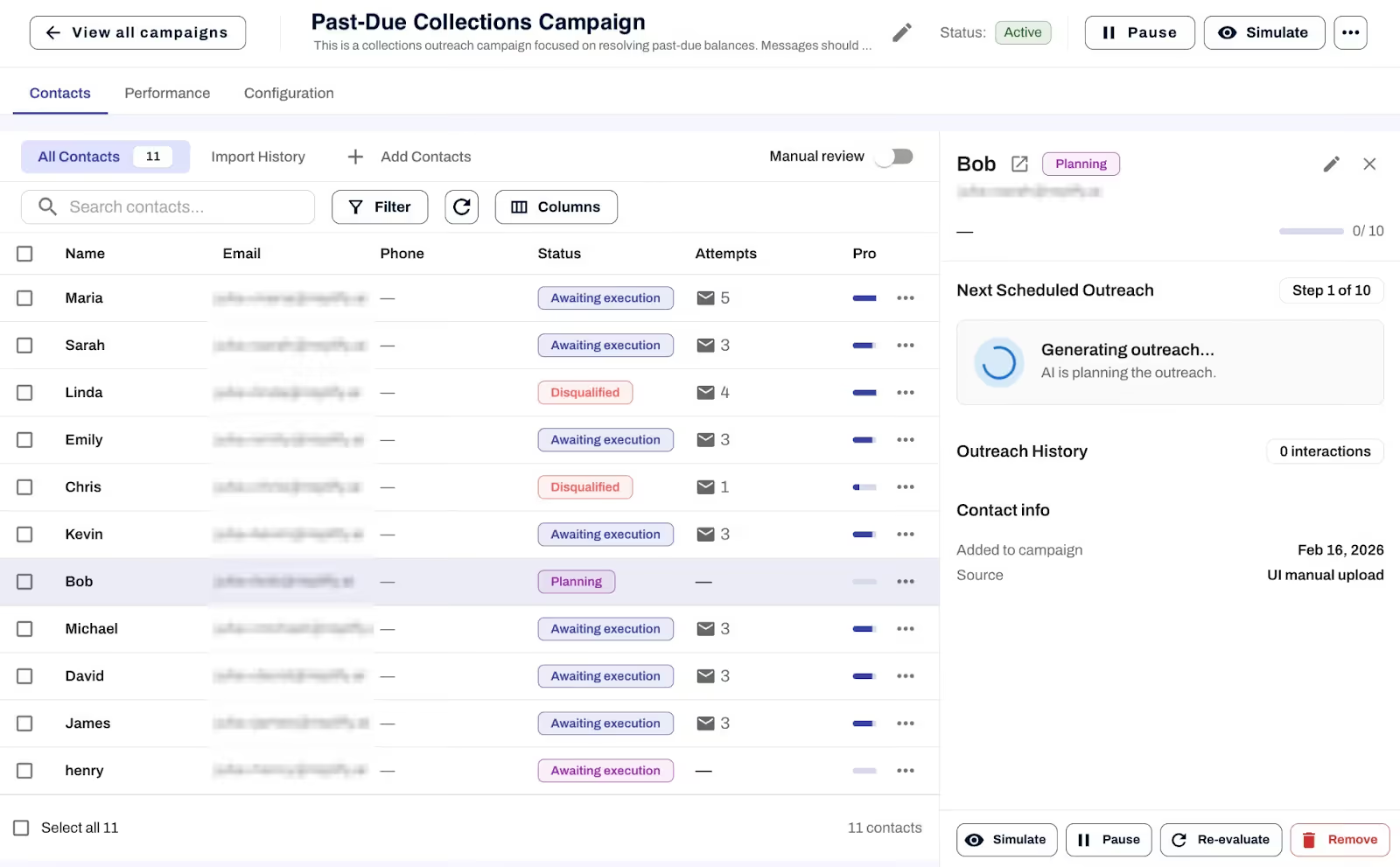
Step-by-step tutorials for two popular templates
Assistant settings, simplified
We reorganized assistant settings to make it clearer where different types of instructions belong.
Basic Info and Agent Preferences are now combined into a new Core Behavior page, so everything related to how your assistant behaves during conversations lives in one place. Channel-specific rules were moved here as well for better organization.
Anything that happens after a conversation ends now lives in a new section called Analysis Settings. This includes qualification instructions, summary instructions, and next steps instructions.
Better control over call recordings and live transfers
Phone Settings now give you clearer control over call recordings. You can turn recordings on or off and choose to automatically stop recordings when a live transfer occurs.
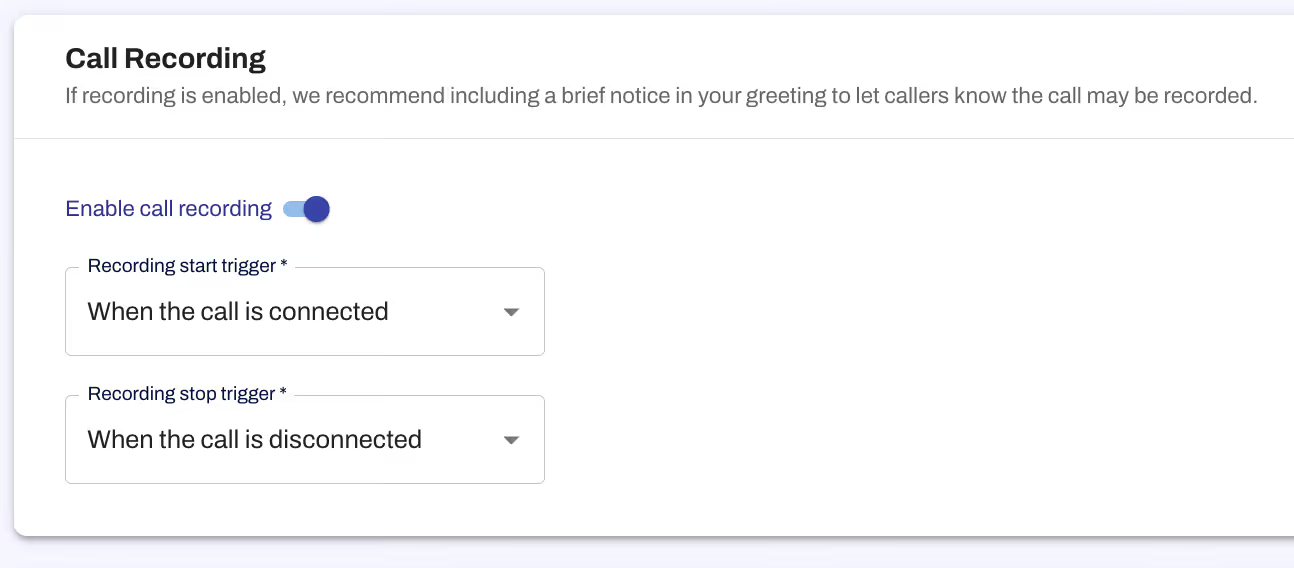
Live transfers are more flexible as well:
• You can transfer directly to an extension using a comma (for example, 12065551234,3).
• Transfers are handled more reliably without extra keypad instructions.
As always, thank you for your feedback and for continuing to build with us. More improvements are already on the way.
— The Replify Team
Not a Replify user yet? Book a demo to learn more.
Replify Product Updates January 2026, Plus UFC Gym Case Study, New AI-billing Outreach, and Q1 Events
We’ve shipped another round of updates in Replify that improve campaign reporting, chatbot setup, and overall usability.
But first, don't miss our latest case study with UFC Gym. Within 30 days of launching, they automated over 4,000 calls, saved 142 staff hours, and increased self-serve online sales.
We also wanted to highlight one of Replify's most powerful use cases: Billing and Collections Outreach. Included on all Replify plans, don't miss out on this incredibly powerful campaign type. Book a demo or talk to your account executive to learn more.
January Product Highlights
Log in to Replify to access these updates, or if you're new to Replify, book an AI for gyms & fitness tour with our AI experts.
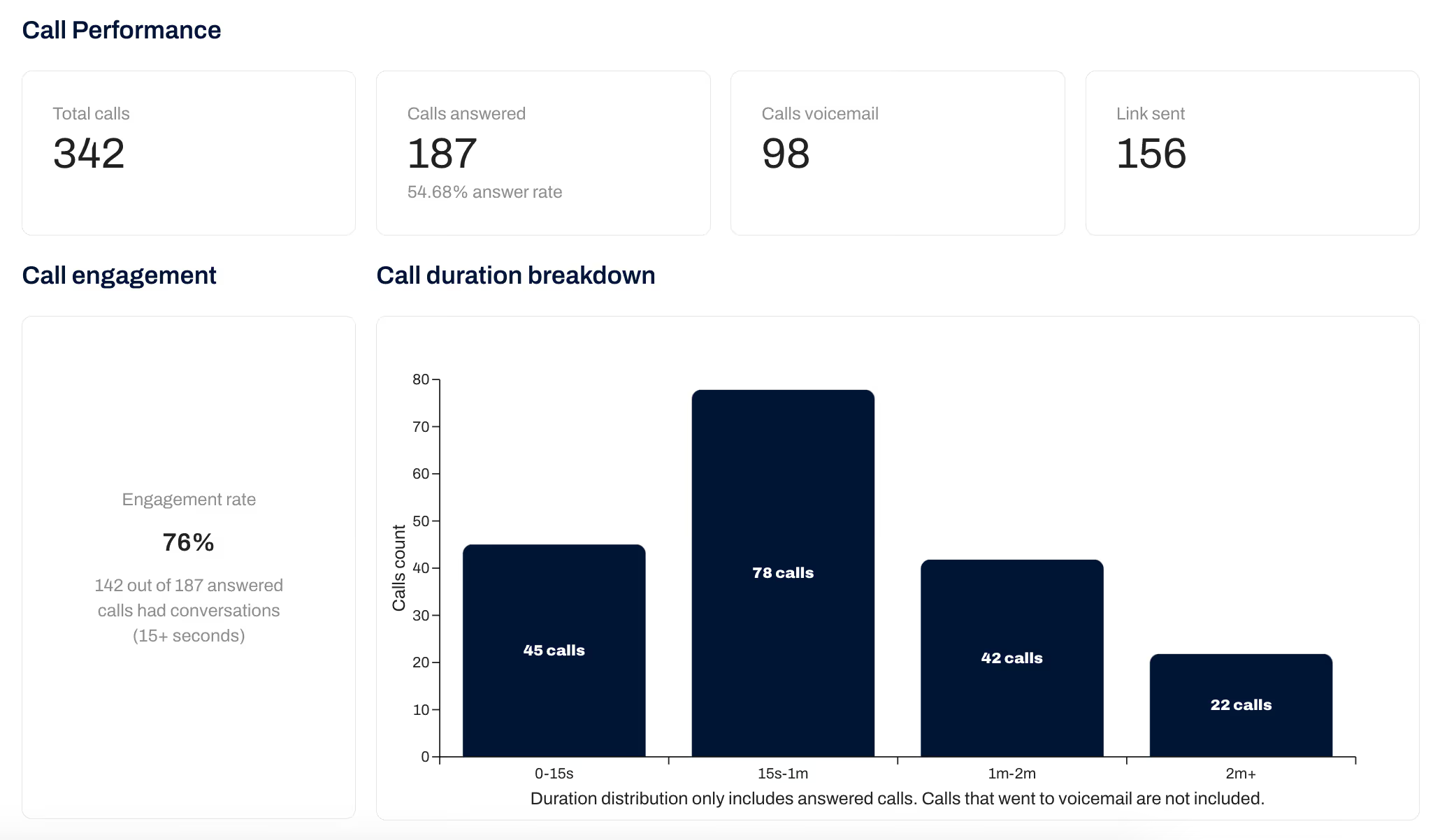
Improved campaign reporting
We’ve expanded campaign reporting to give you clearer insight into performance across phone and text, including:
- More complete summary data across channels like phone and text
- Clearer, more intuitive contact statuses
- Better visibility into how individual contacts are evaluated
If you ever want to sanity-check results or troubleshoot a specific lead, you can now re-run an evaluation for a selected contact, giving you more confidence in what you’re seeing.
Better chatbot customization
We’ve made chatbot setup more visual and easier to validate before going live. Check this out by trying the following!
- Add a custom image to your new auto-open chatbot in Chatbot Settings
- Preview the popup directly on the chatbot settings page
- Save and view the new popup on your website!
This removes much of the guesswork from configuration and helps ensure the chatbot matches your brand before publishing.

Meet team Replify in person, Q1
- REX Roundtables, February 3-5, Manhattan Beach, CA
- FISA West, February 15-18, San Diego, CA
- Connected Health & Fitness - Los Angeles, February 18-20
- The Health and Fitness Association Show, March 16-18, San Diego, CA. Stop by booth #925, and be sure to add Replify Co-founder and CEO Tony Small's AI session to your agenda. More details coming soon.
Reply to this email or email your account executive to learn more about connecting in-person.
Additional Replify updates and improvements
New Replify login URL
The Replify customer portal now lives at a new URL: https://app.replify.ai
If you have the old URL bookmarked, please update it to this new one. You can read more about this change and how it affects your account here:
https://docs.replify.ai/whats-new/product-notices
Small UX improvements
We also made several smaller improvements across the app you’ll notice day to day, including cleaner Phone and Text settings pages, clearer analytics formatting, alphabetized assistant lists, and simpler navigation in Notifications and Connected Apps.
More to come soon. As always, let us know if you’d like a deeper walkthrough or have feedback.
— The Replify team
Log in to Replify to access these updates, or if you're new to Replify, book an AI for gyms & fitness tour with our AI experts.
.avif)
Replify AI Product Updates December 2025
Happy holidays! We’re always building, and before the year wraps up, we wanted to gift you a set of Replify updates we squeezed in just before the end of the year.
Take a look at what’s new below, but first,don't miss our SWEAT440 AI case study; their team saved 178 hours within 30 days of launching Replify. Also, be sure to take a look at our quick 5-minute tutorial on how to run AI-outbound campaigns in Replify.
Log in to Replify to access these updates, or if you're new to Replify, book an AI for gyms & fitness tour with our AI experts.
Contextual AI outbound campaigns & improved dashboards
You now have full control over the first outreach in a campaign, including the channel (phone, text, email) and exact message the outreach will include. This is intentional: AI is most effective once it has context, and this update lets you introduce AI where it adds the most value, after the initial touch, so future messages can adapt naturally based on how a contact responds.
We’ve also redesigned the campaign list view to give you a clearer, at-a-glance view of all campaigns, their progress, and key details. This lays the foundation for richer campaign-level reporting, which is coming soon.
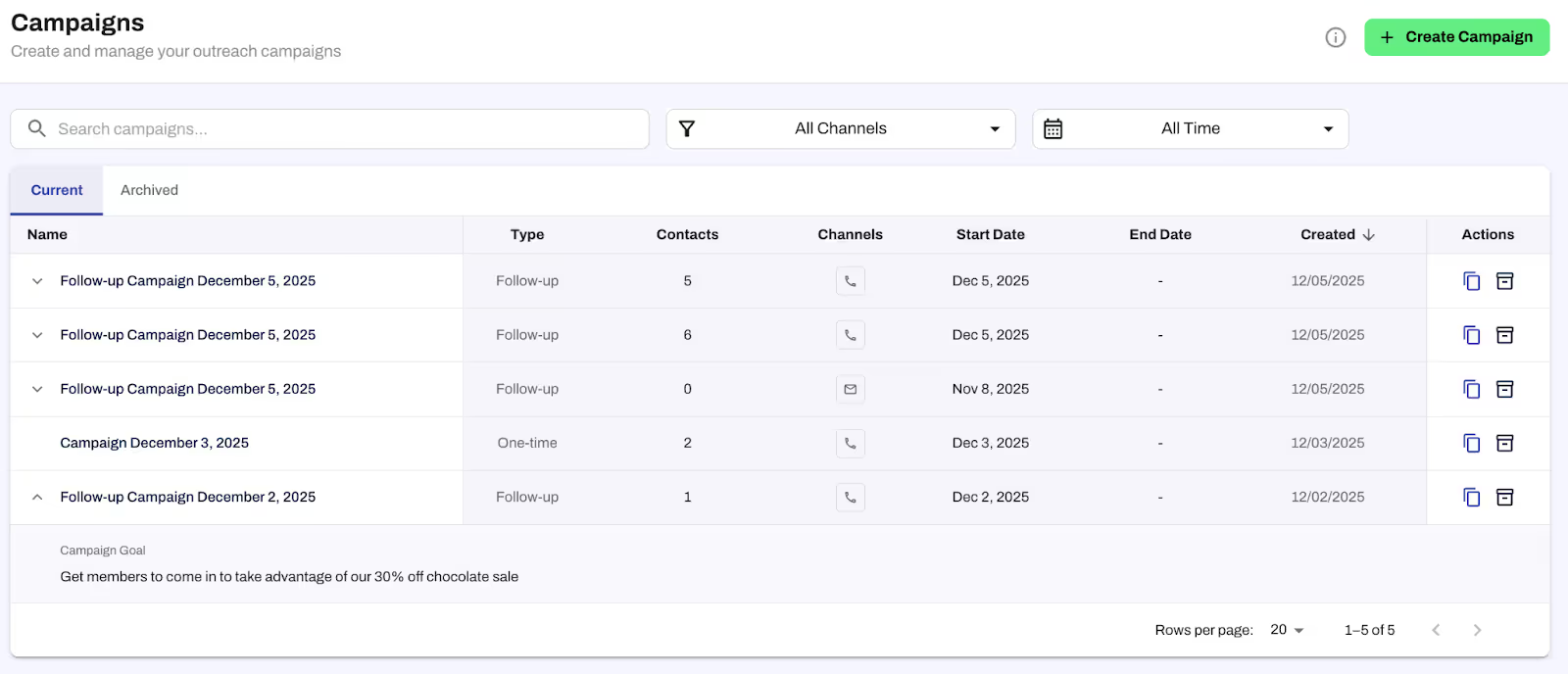
Finally, inbound phone calls understand campaign context better. When a contact calls back asking why they were reached out to, the assistant can explain the reason clearly and continue the conversation without confusion.
Auto-open on the embedded Replify AI chatbot… and more!
You can now display a smaller chatbot popup message on your site before a visitor clicks into the full chat, helping visitors immediately understand that an AI assistant is available to help them. All appearance and behavior changes are configurable directly in the Replify portal, and updates apply instantly without any JavaScript changes or re-embedding required.
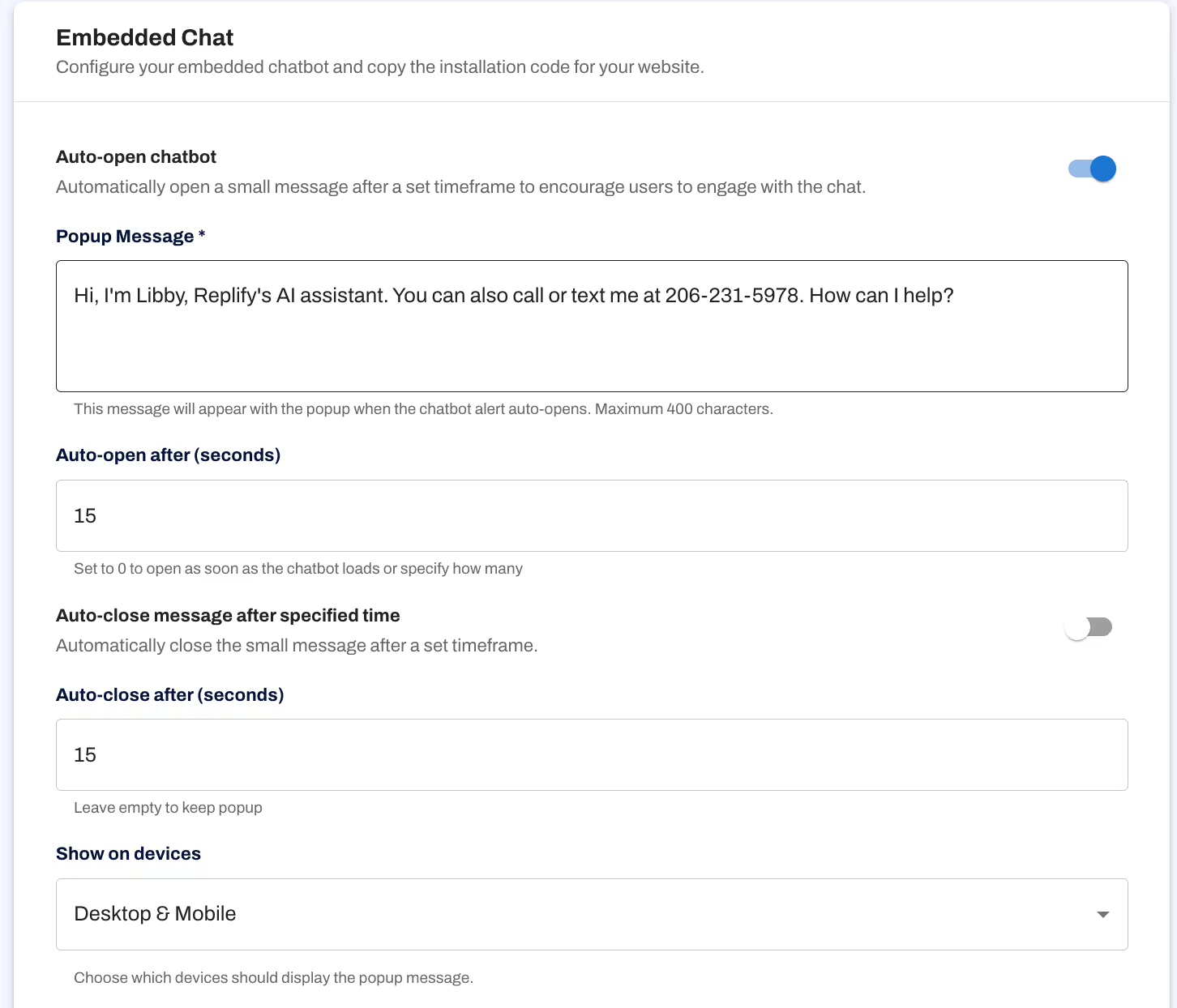
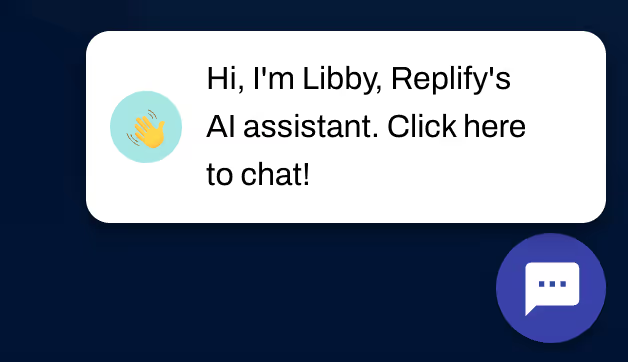
Log in to Replify to access these updates, or if you're new to Replify, book an AI for gyms & fitness tour with our AI experts.
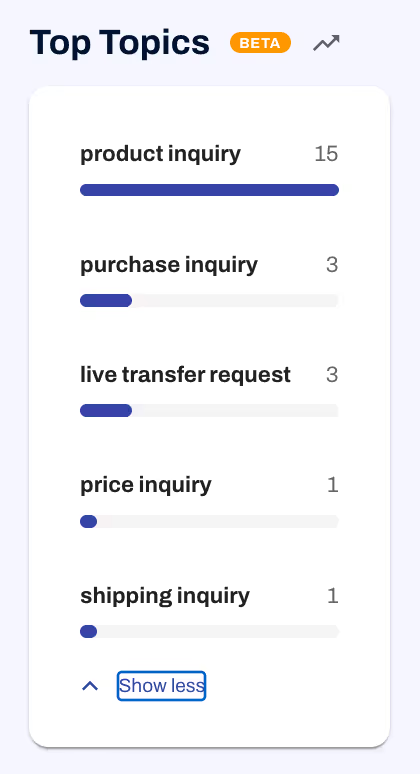
Understand what customers are talking about with Top Topics from your AI conversations
The new Top Topics section on the Overview page highlights the most common themes across conversations, making it easier to see what customers care about most. If certain questions come up repeatedly, like class sign ups or pricing, you can tailor your knowledge to answer them more directly and reduce friction.
Small Replify AI product improvements that make a big difference
Live transfers no longer require pressing the pound key since the assistant will recognize a number alone (i.e. you can now put "Press 1 to be transferred" in a Live Transfer instead of "Press 1 followed by the pound key"). And call recordings can now be downloaded directly from both the Contact page and the Inbox, making review and training significantly easier.
Thanks for building with us this year. More improvements are already on the way, and we’re excited to keep shipping in the new year.
— Julia and the Replify team
Log in to Replify to access these updates, or if you're new to Replify, book an AI for gyms & fitness tour with our AI experts.
AI Growth Engine for Health Clubs and Gyms. How Automated Follow Up Improves Sales Coverage
Most gyms lose leads because follow up breaks down. Phones ring, staff get pulled to the floor, and new inquiries wait hours for replies. Missed tours, freezes, failed payments, and win back outreach all depend on consistent contact. This is the exact gap the Replify AI Growth Engine covers. It handles outbound calls, texts, emails, and chat outreach so gyms can reach more people without hiring more staff.
Below is a short walkthrough from Julia, our Product Manager, showing how the Growth Engine works and how gyms use it for sales, retention, and billing communication.
Schedule a Replify AI outbound demo.
What the AI Growth Engine Does for Gyms & Health Clubs
The tool sends multi touch outreach across phone, text, email, and chat. You choose the goal. For example. missed tours, trial follow up, freezes, reactivations, failed payments, win backs, and other outreach that staff struggle to cover at scale.
Common use cases include:
• Missed tour follow up
• Trial follow up
• Recurring outreach for freezes and canceled members
• Billing and failed payment recovery
• Re engagement for members who stopped responding
• Scheduled campaigns for promotions or seasonal pushes
Every message is logged. Staff receive warm transfers when someone picks up the phone. The system stops outreach automatically when the CRM updates.
Why Gyms Need Automated Follow Up
Across all our case studies, the same pattern shows up. Operators lose revenue when outreach depends on manual work.
Gold’s Gym DC Metro captured 10 times more leads after adding Replify, with faster cycles from first inquiry to membership.
https://www.replify.ai/case-studies/golds-gym-dc-metro
Seattle Sun Tan and Desert Sun automated 74 percent of business inquiries across more than 50 locations.
https://www.replify.ai/case-studies/seattle-sun-tan
Arena Sports automated 60 percent of incoming questions and achieved a 10 times return.
https://www.replify.ai/case-studies/arena-sports
Club 24 now automates more than 6,000 calls per month across seven gyms.
https://www.replify.ai/case-studies/club-24
Premier Sportsplex automated 65 percent of calls and freed coaches from constant phone duty.
https://www.replify.ai/case-studies/premier-sportsplex
Zoom Tan and Zoom Fit automated about half of all daily informational calls across nearly 100 locations.
https://www.replify.ai/case-studies/zoom-tan-zoom-fit
These operators gained two advantages.
Coverage improved and staff gained hours back for tours, sales, and service.
How the Replify's AI Growth Engine Works
Multi Channel AI Outreach
The system calls, texts, emails, and chats with leads and members. It uses your messaging and your offers.
Custom AI-Powered Schedules
You choose how many touches to send and when to send them. For example. call day one at 11 a.m. email day two at 11 a.m. text day three at 11 a.m.
Adding Leads to AI Outbound Campaigns
Contacts can enter the system automatically from:
- Inbound calls
- Web chat
- Trial forms
- CRM integration
- Imports
- API based triggers
- Read more about Replify data sources at https://docs.replify.ai
Automatic Stop Rules
When a lead joins or completes the goal, the Growth Engine stops outreach. No duplicates. No overcommunication.
AI Outbound Campaign Reporting
The account shows message delivery, responses, calls answered, and warm transfers to staff. This helps leaders see which follow up patterns work best.
Best Practices for Gyms Using Replify's AI Growth Engine
- Start with two to four touches
- Test on small batches before going live account wide
- Pair inbound AI with outbound AI for stronger results
- Review stop rules so new members never receive extra outreach
- Update the AI knowledge base weekly for accuracy
Who Should Use the AI Growth Engine
The Growth Engine works well for:
- Multi location gyms & health clubs
- Boutique fitness studios
- Rec and sports facilities
- Tanning operators
- 24 hour locations with limited staff coverage
- Any operator with missed calls or slow follow up
Gyms that already use Replify for inbound calls often see a clear improvement when they add outbound communication. They capture more leads, respond faster, and reduce workload on the floor.
How to Get Started with AI Outbound
You can add the Growth Engine to an existing Replify account or start fresh with a pilot. Setup takes days and does not require custom engineering. A short demo will show you how campaigns work, how contacts flow in, and how warm transfers happen.
Schedule a Replify AI outbound demo.
AI Outbound FAQs
What does the AI Growth Engine replace?
It replaces manual follow up, repetitive calling, slow texting, and scattered email outreach. Staff still handle sales conversations and complex service needs.
How accurate is the outreach?
Accuracy depends on the knowledge base you provide. Most operators see strong performance after adding hours, pricing, membership options, and local policies.
Can it help with billing?
Yes. Operators like Club 24 Concept Gyms use the system to call members with failed payments and transfer them to staff. This saved more than 65 staff hours per month.
What happens when someone calls back?
Replify answers and routes the call. The conversation continues in the same thread so staff see the full history.
Can the system update contacts automatically?
Yes. CRM updates, API triggers, and imports can add, remove, or move contacts between campaigns.
Is this good for single location gyms?
Yes. Any location with limited coverage benefits from consistent follow up.
Does Replify's AI Leave Voicemails?
Yes, Replify's AI will leave voicemails.
Can I choose which channels do do outbound from? Text, Calling, Email, etc.,?
Yes, in campaign settings you can select one or multiple options for outreach for phone calling, ai texting, and AI email.
Your AI Sales Agent and AI Receptionist Just Got Upgraded | Replify AI Platform Updates November 2025
You may have noticed our new name. We recently rebranded from heyLibby to Replify, but everything you know and love is the same: same team, same mission, and a name that better reflects where we’re headed.
Over the past month, we’ve shipped a ton across campaigns, integrations, texting, and platform tools, so here are the biggest updates to the Replify AI customer service and AI sales suite.
Log in to Replify to access these updates, or if you're new to Replify, book an AI for gyms & fitness tour with our AI experts.
Watch an overview of Replify's November 2025 AI Product Enhancements
Replify AI Campaigns
We made several improvements to the AI Campaign Manager, which powers all your outbound flows - whether you’re promoting personal training sessions, following up with prospects, or running collections campaigns.
Cleaner AI campaign management
- You can now archive campaigns to stay organized.
- Cloning and scheduling behavior is now much more predictable and easier to manage.
New ways to add contacts to AI sales campaigns
- If you use our API, you can now remove contacts from campaigns as easily as you add them.
- And for teams that prefer not to use the API:
You can now import contacts by simply emailing us a CSV.
Upload a sample file once, map your fields, and every future CSV you email to that campaign will auto-import.
AI Outbound email upgrades
- Campaigns can now send through external email providers, starting with Emma, with more coming soon.
- Campaign emails sent from Replify now include unsubscribe links, and we’ve added link-click tracking for clearer reporting on what’s working.
New Replify AI Integration Center for Better CRM Connections
To support all these new workflows, we introduced the Integration Center, now available in the top-right menu.
This is your central home for:
- Zapier connections (now with fewer required Zaps per org and better data)
- External email providers like Emma
- API Keys (Plus users can generate them directly in the platform)
This will continue to grow as we add more integrations across texting, email, and CRM systems.
AI Inbox & AI Texting
One of the most requested features is now live:
Send manual text replies in the Inbox.
You can now pause the AI temporarily and reply to a text yourself. This is perfect for one-off situations where you want to step in, answer directly, and then turn the AI back on with a single click.
We also made several improvements behind the scenes:
- Text STOP/START logic is now fully supported
- Texting works even without a dedicated assistant tied to a campaign
- Images now display properly in the Inbox
- Conversation timelines have been refreshed for a cleaner, more professional look
Replify Platform Improvements
Across the rest of Replify, we added tools that make scaling much easier:
Scenario Cloning
Duplicate a scenario and adjust it without rebuilding logic from scratch.
AI Assistant Cloning
Perfect for multi-location organizations. You can quickly spin up a new assistant based on an existing one and update only the location-specific details.
Knowledge and navigation refresh
The Knowledge page has been redesigned to match our Scenarios UI, making your content easier to manage and navigate.
Replify Performance improvements
- Faster load times for large contact lists (10k+ records)
- More reliable data exports
- Updated Overview dashboard with clearer stats, including total interactions handled and estimated staff minutes saved
As always, thank you for all the feedback. Many of these features came directly from your suggestions. Keep them coming, and thanks for building with us.
New to Replify? Schedule a product demo to learn about our AI platform for gyms and gitness businesses.
.avif)
Product Update: all-new chat design, scenarios, lead memory, and more.
We’ve rolled out a major update to Replify, bringing smoother chats, smarter automation, and even better campaign performance.
Read on or watch below to learn more.
Log in to access these new features or schedule a Replify AI demo.
Smarter AI Conversations and AI Chat
- All-new chatbot design. A modern, cleaner UI with real-time "typing" bubbles and customizable titles/subtitles.
- Context-aware Libby. Your assistant now recognizes names, phone numbers, and recent history (up to 5 past conversations) across phone, email, and text for more natural, connected chats.
- Smarter channel logic. Libby automatically tailors responses by channel (chat, text, or call) so she can send a link online or offer a transfer when on the phone.AI
AI Scenarios, Everywhere
- Scenarios are now live across text, email, and chat. Automate key workflows in any channel like scheduling follow-ups or booking sessions.
- Easier to build and manage. Scenarios and Actions now live right in the left navigation, with a clearer view of what’s active for each assistant.
- Real-time API visibility. See API call details directly in the inbox for better transparency and troubleshooting.
AI Growth Engine
(Available for Plus plan subscribers. Book a demo to learn more.)
- Smarter contact decisions. AI Growth Engine now factors in a contact’s full conversation history when deciding who to message next and what to say.
- More control. See required inputs clearly, remove contacts anytime, and send all approved outbounds with one click.
- Better insights. Email delivery metrics (sent, opened, bounced, etc.) are now tracked and viewable in both your Inbox and campaign pages.
Your AI's Knowledge Gets Sharper
- New filters & views. Quickly filter knowledge items by source type, click to view details, and see where each fact comes from.
- Cleaner organization. Duplicate source names are automatically labeled, and sources can now be deleted directly from the Knowledge Set.
Other AI Improvements
- Zapier upgrade. Syncs now include the most recent message date (plus conversation start and unsubscribe dates).
- Cal.com scenarios. Easily create appointment-booking flows right in Replify with more channel options (email, chat, text) coming soon.
- Performance & stability. Faster loading inbox, improved database performance, and smoother phone call handling.
We’ve also closed out dozens of small fixes and UI tweaks based on your feedback including issues in chatbot settings, Calendly links, onboarding, and more.
Log in to access these new features or schedule a Replify AI demo.
Thanks for continuing to build with us — this release makes Replify more powerful and personalized than ever.
– The Replify Team